How Do I Submit a Voucher Request?
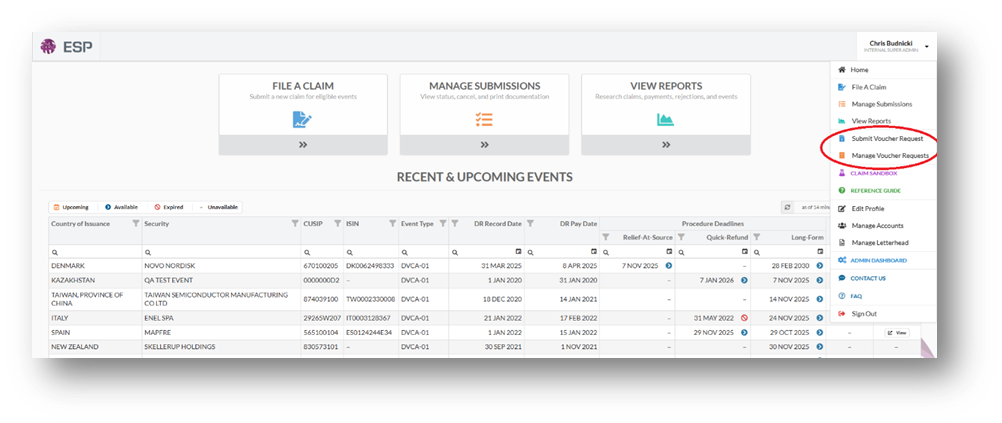
For Regular ESP Users, the voucher-related pages can be accessed by clicking the drop-down menu in the top right-hand corner at any time.
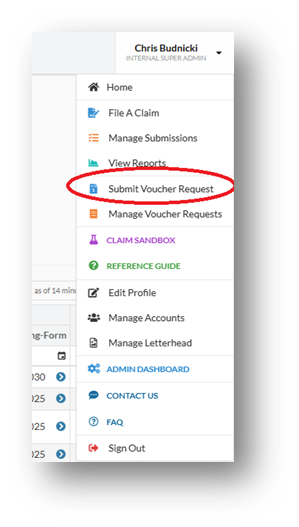
Click Submit a Request
Select any area on the “Submit Voucher Request” box to navigate to the submission page
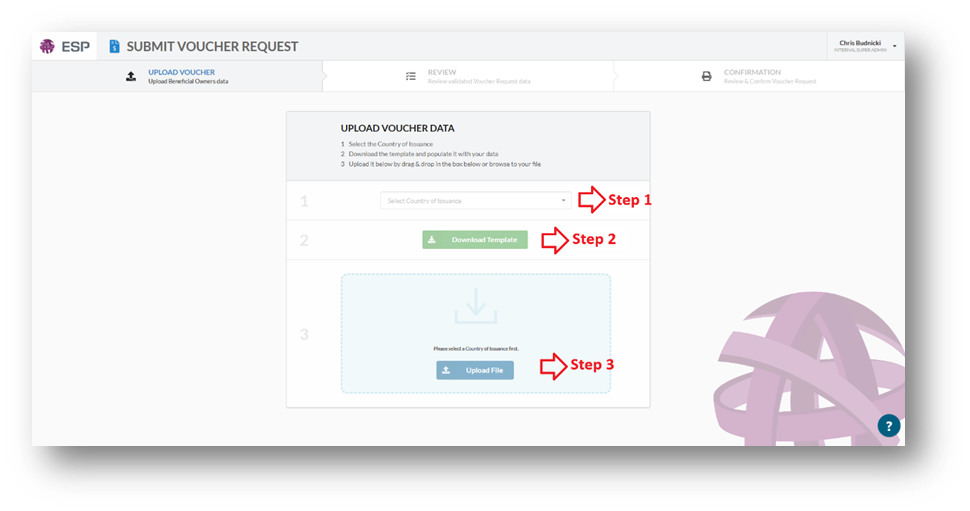
Download Submission Template and Complete Beneficial Owner Information
Select the desired Country from the drop-down menu.
Select the green “Download Template” button to download the Excel spreadsheet.
Follow the directions provided within the Excel spreadsheet to input Beneficial Owner data.
Save your work in preparation for uploading the file.
To attach your spreadsheet, select the “Upload File” button or drag the file from your computer into the light blue box.
Review and Submit
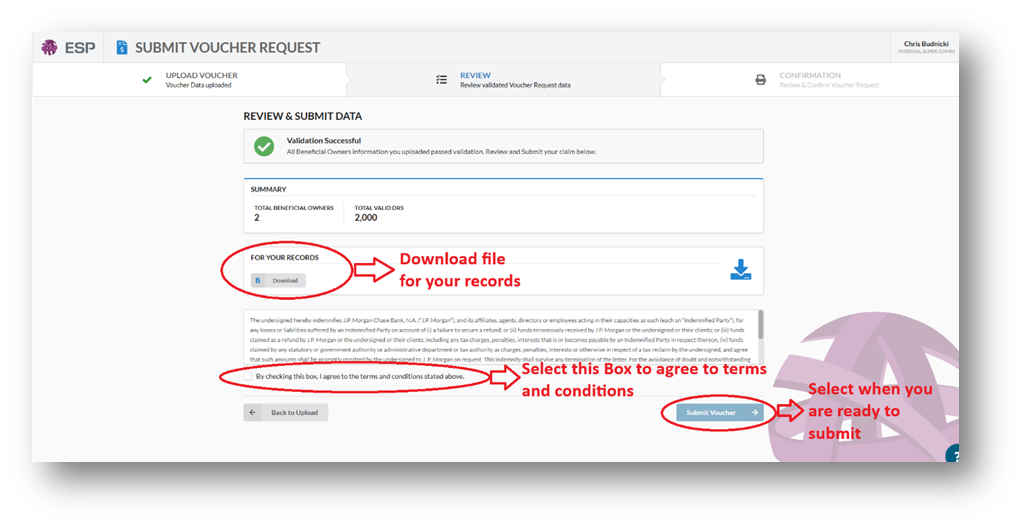
If all Excel fields are completed correctly, Validation Successful will appear.
Under for your records select “Download”, to save a copy of the successful submission file.
Read the Terms and Conditions and check the gray box.
Upon completion, select “Submit Voucher”.
Correct Errors (Where Necessary)
If all items have errors:
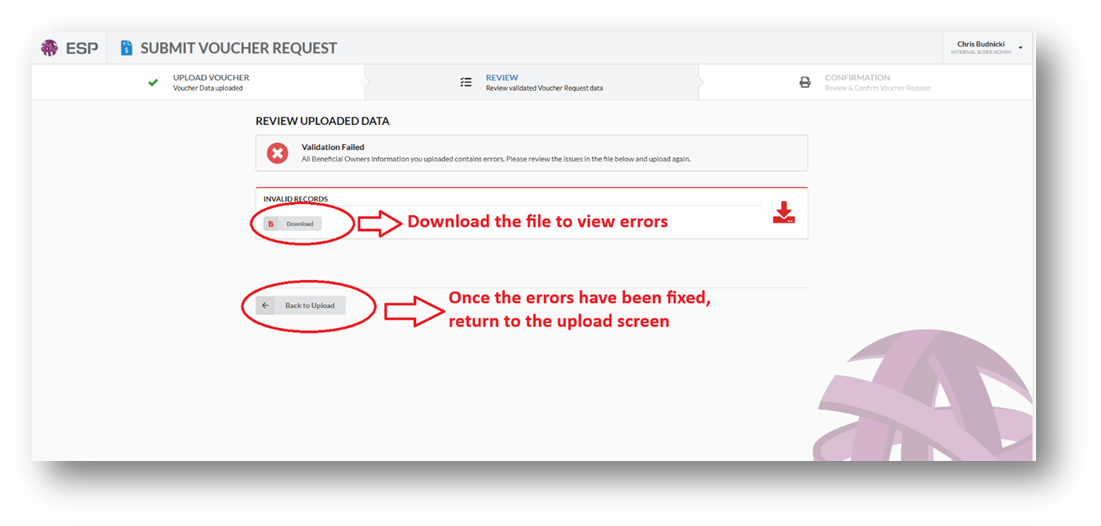
If the Excel fields are not completed correctly, you will be directed to the “Review Uploaded Data” screen.
Click “Download” in the red box.
The incorrect cell will be highlighted in pink. Clarification of the error is found in the far-right cell.
Fix any issues in your original upload template.
Select “Back to Upload” and follow the steps in Section 2 to complete your submission.
If some items have errors:
If some of the Excel fields are not completed correctly, you will be directed to the “Review & Submit Data” screen.
The summary box indicates the number of valid records that were populated in the Excel spreadsheet.
Before moving forward with your submission, you must fix the errors indicated in the All Records or Invalid Records File
Click “Download” under All Records or Invalid Records Only
The incorrect cells are highlighted in pink. Clarification of the errors is found in the far-right cell.
Fix any issues in your original Upload.
Select “Back to Upload” and follow the steps in Section Six to complete your submission.
If you would like to do a partial submission you must download the invalid records only file before clicking the “Submit Voucher” button.

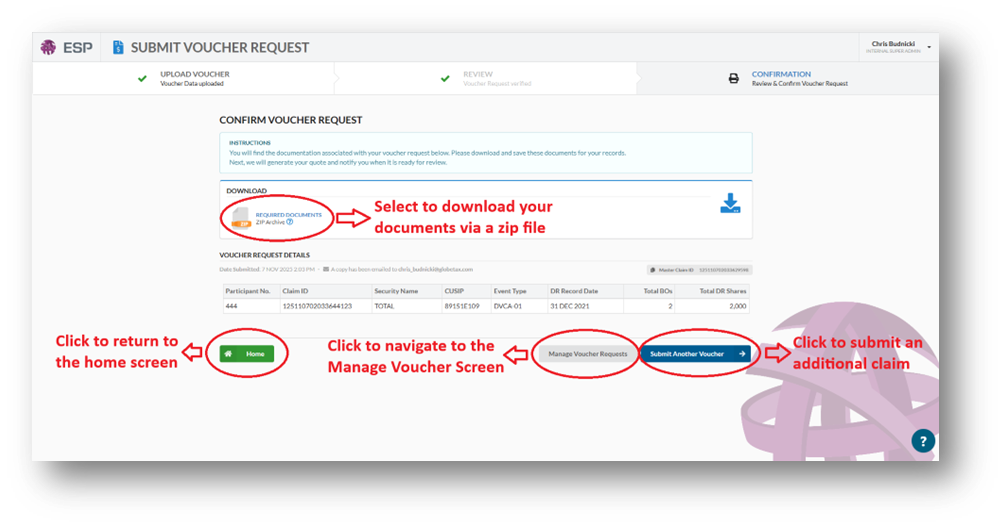
Confirm Submission
Select the “Required Documents” icon to download the physical documentation required to finish your filing.
The download opens as a zip-file.
The process is now complete. You will receive an email confirming your submission is complete.
Additionally, an email will be sent when the quote is ready for the voucher.